Note
Access to this page requires authorization. You can try signing in or changing directories.
Access to this page requires authorization. You can try changing directories.
In this Quickstart, you explore the Visual Studio integrated development environment (IDE). This article provides a 5-10 minute introduction to help you become familiar with the windows, menus, and other features available for JavaScript development.
If you don't have Visual Studio, you can install the free trial version from the Visual Studio Downloads page.
Use the Start Window
The first thing you see after you launch Visual Studio is the Start Window. The Start Window is designed to help you "get to code" faster. There are options to clone or check out code, open an existing project or solution, create a new project, or open a folder with code files.
If you're already working in Visual Studio, you can open the Start Window by selecting File > Start Window.


If you're new to working with Visual Studio, your recent projects list might be empty.
If you work with non-MSBuild based codebases, use the Open a folder option to open your code in Visual Studio. For more information, see Develop code in Visual Studio without projects or solutions. Otherwise, you can create a new project or clone a project from a source provider such as GitHub or Azure DevOps.
If you work with non-MSBuild based codebases, use the Open a local folder option to open your code in Visual Studio. For more information, see Develop code in Visual Studio without projects or solutions. Otherwise, you can create a new project or clone a project from a source provider such as GitHub or Azure DevOps.
When you launch Visual Studio, the Start Window includes the Continue without code option. This action lets you open the Visual Studio development environment without any specific project or code loaded. You might use this option to join a Live Share session or attach to a process for debugging. You can also select the Esc key to close the Start Window and open the IDE.
Create a project
To continue exploring Visual Studio's features, create a new project. Visual Studio provides various kinds of project templates that help you get started coding quickly.
In the Start Window, select Create a new project. The window refreshes to show options for creating the new project.
In the Search for templates box, enter javascript or typescript.
Your input text filters the list of project types to show templates that contain "JavaScript" or "TypeScript" in their name or language type.


Select the JavaScript Express Application project template and select Next.
In the Configure your new project window, accept the default project name, and select Create.
Visual Studio creates the project and opens it in the IDE. The files and folders for the project are visible in Solution Explorer.
Browse your project in Solution Explorer
The Solution Explorer pane typically opens on the right side of the Visual Studio IDE. This window shows a graphical representation of the hierarchy of files and folders in your project, solution, or code folder.


You can browse the hierarchy, search for a specific file or folder, and select a file to open it.
Open files in the code editor
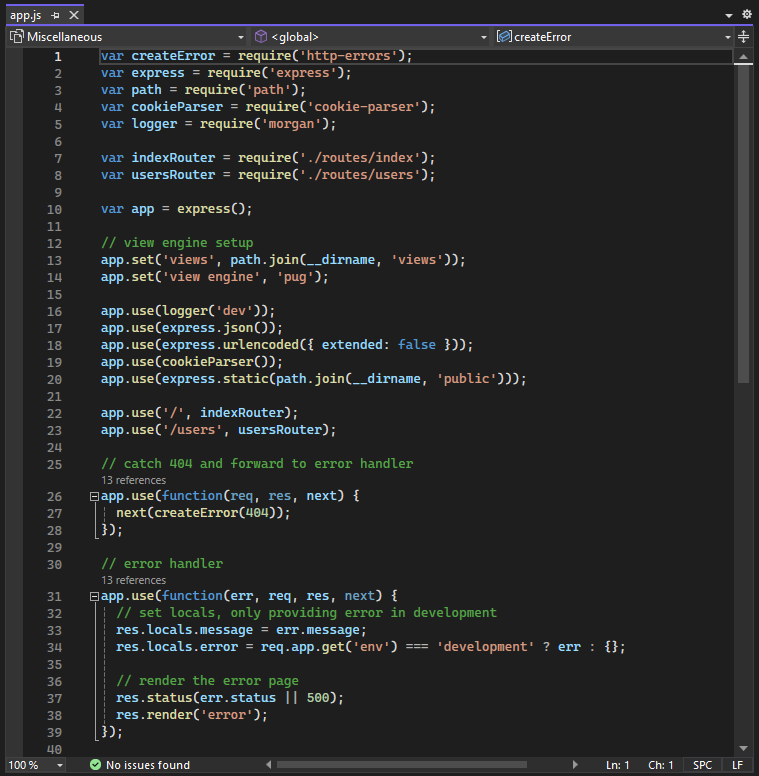
In Solution Explorer, select the app.js file to open the file in the Editor window. The Editor shows the contents of files, and is where you do most of your coding work in Visual Studio.

Explore the main menus
The menu bar along the top of Visual Studio IDE provides quick access to groups of commands arranged by category. For example, the Project menu contains commands related to the project you're working in. On the Tools menu, you can customize how Visual Studio behaves by selecting Options, or add features to your installation by selecting Get Tools and Features.


Select View to see the list of view-related commands, and then select Error List to open the Error List window.
Review errors and warnings in the Error List
The Error List shows you errors, warning, and messages regarding the current state of your code. If there are any errors (such as a missing brace or semicolon) in your file, or anywhere in your project, they're listed here.


Check build messages in the Output window
The Output window shows you output messages from building your project and from your source control provider.
Build your new project so you can explore the build messages in the Output window. On the menu bar, select Build > Build Solution.
The Output window automatically obtains focus and display a successful build message.


Search for commands and features
The Search box is a quick and easy way to do most anything in Visual Studio. You can enter some text related to what you want to do, and the search results show a list of options related to your input text.
Suppose you want to increase the build output verbosity to see more details about what the build is doing. You can follow these steps:
- If you don't see the Search box, use the Ctrl+Q keyboard shortcut. In the Search box, enter verbosity.
In the results list, double-click the MSBuild project build output verbosity (projectsAndSolutions.buildAndRun.outputVerbosity) entry.

The Options pane opens to the All Settings > Projects and Solutions > Build And Run section.
Use the dropdown and set the MSBuild project build output verbosity option to Normal.
In the results list, double-click the Change MSBuild verbosity (Projects and Solutions > Build and Run) entry.

The Options dialog opens to the Projects and Solutions > Build And Run section.
Use the dropdown and set the MSBuild project build output verbosity option to Normal, and select OK.
Build the project again by right-clicking the project in Solution Explorer and selecting Rebuild in the context menu.
This time, the Output window shows more verbose logging from the build process.


Send feedback
If you encounter any problems while you're using Visual Studio, or if you have suggestions for how to improve the product, you can use the Send Feedback menu at the top of the Visual Studio window.
